How to Shoot Log on iPhone Duo (Apple Log and Manual Controls)
The iPhone Duo's Camera app has no Log mode. To shoot log on iPhone Duo, use Log Cam: RAW 4K Video Camera: it records Apple Log and six other log profiles and keeps manual shutter, ISO and focus adjustable during a take. 1
Does the iPhone Duo shoot Apple Log?
Not in Apple's own Camera app. Apple's iPhone Duo tech specs list the video formats it records as “HEVC and H.264”, and the video section mentions neither Apple Log nor ProRes.1
Apple ties its own Log recording to Pro models. Its ProRes support page lists the iPhone 13 Pro through iPhone 18 Pro models, and the Duo is not among them. The Final Cut Camera guide is more specific: “Log recording requires iPhone 15 Pro or later.”2,3
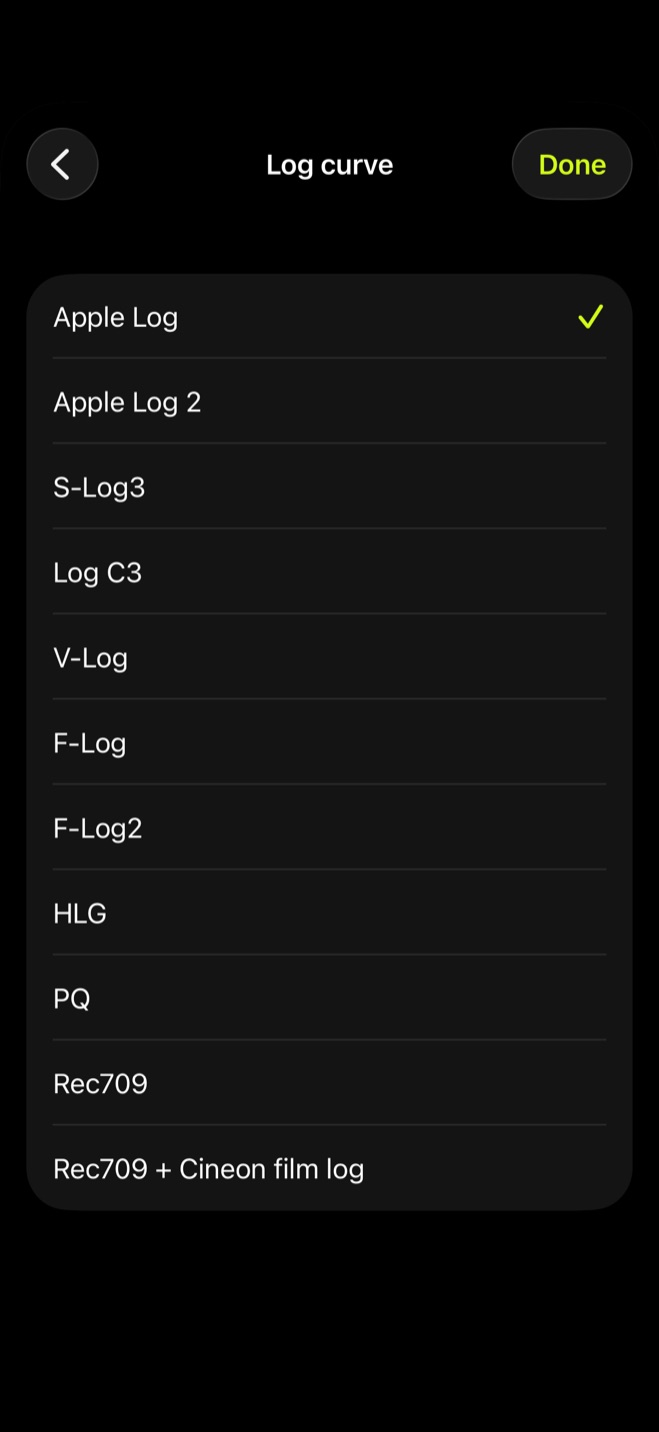
Log Cam records log on the Duo anyway, because it applies the log curves itself instead of relying on Apple's Log. That also covers iPhones Apple's Log never reached, such as the iPhone 13 and 14. It has seven log profiles: Apple Log, Apple Log 2, S-Log3, Log C3, V-Log, F-Log and F-Log2.
Duo owners who shoot video have landed on the same answer. Creator @harrisonniap films on his Duo with Log Cam and shared the exact settings he uses in a seven-slide Instagram carousel.
The Duo’s Camera app doesn’t have Log, so I’ve been using an app called Log Cam to film Apple Log on my Duo. It records Apple Log on pretty much any iPhone, not just the Duo, and you get pro controls like manual shutter, ISO and white balance as well.
How to shoot log on iPhone Duo, step by step
These steps take you from download to a log clip ready to grade, with the same frame rate and shutter settings he uses.
Record a log clip on the iPhone Duo
- 1.
Download the app
Log Cam is free to download. Everything works for 10 days with no credit card and no subscription, and after that a one-time purchase keeps recording open.
- 2.
Pick a log profile
In Settings, under Color, open Log curve. Choose Apple Log for a first clip, or the curve that matches the camera you are cutting with.
- 3.
Set 24 fps
Tap the FPS readout on the camera screen and pick 23.976, 24, 25, 29.97 or 30. 24 fps gives the cinematic look, and 30 fps is fine for social video.
- 4.
Set the 180-degree shutter
The 180-degree rule puts the shutter at double the frame rate: 1/48 at 24 fps, 1/60 at 30 fps. Then set ISO as low as the light allows and lock a white balance so the color does not drift between shots.
- 5.
Expose with the viewfinder tools
Log footage is flat and gray before grading, so judge exposure with the histogram, zebras and false color rather than by how the picture looks. To keep focus, ISO and shutter adjustable once the take is running, turn on Focus & exposure while recording in Settings.
- 6.
Add a LUT, or grade later
In Settings, under Color, open LUT and import your .cube file. Monitoring only shows the look on screen while the clip stays in log, and Baked as Rec.709 writes it into the recording. Or leave the footage in log and grade it in your editing app.
Shooting on the outer display
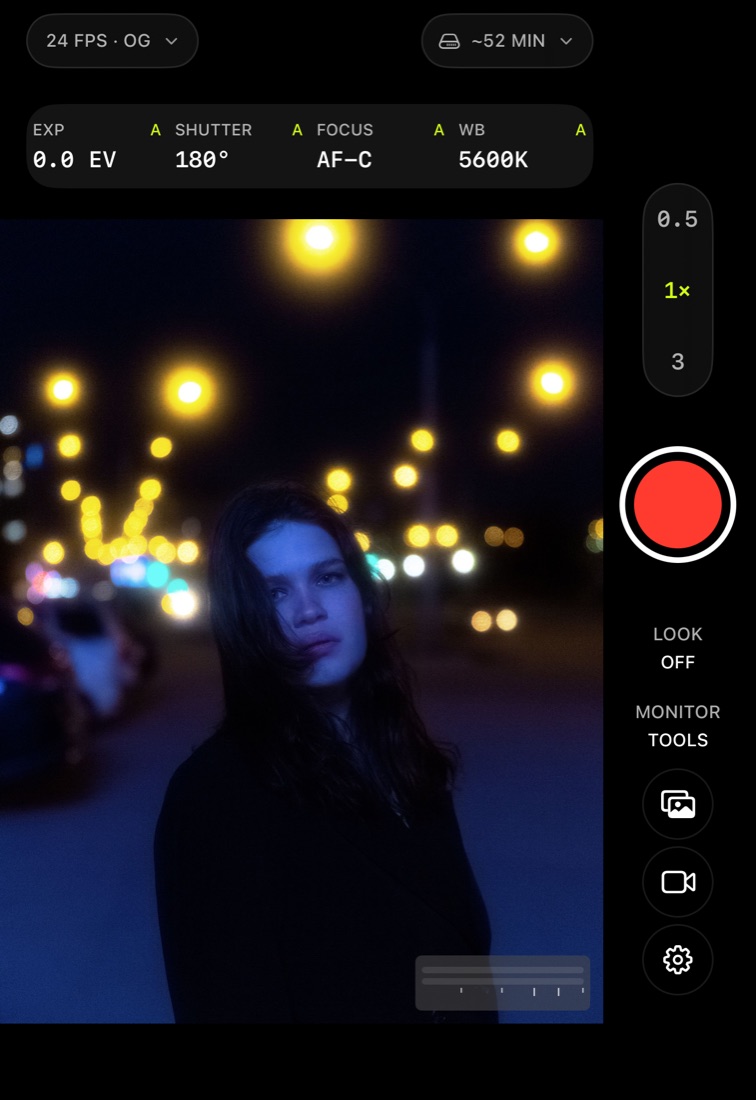
Folded, the Duo is the quickest way to grab a shot. Hold it upright and Log Cam puts the exposure, shutter, focus and white balance readouts in a band across the top, with the picture at full width under them. Record, the lens buttons and the rest of the controls sit in the strip on the right, the column the Duo shares with its clock and front camera, so the picture gets the rest of the screen.
Shooting with the Duo open
Open the Duo when you want the biggest viewfinder, for judging focus and exposure or for shooting from a tripod. Log Cam uses the whole wide panel: the frame rate, recording time and the four exposure readouts run down a column on the left, the picture fills the middle, and the lens buttons, record and settings sit on the right. The picture is 625 points tall, against 533 on an iPhone 14 Pro Max, nearly the full height of the screen, because no controls sit above or below it. The meter and histogram, when you turn them on, sit in a corner of the picture.
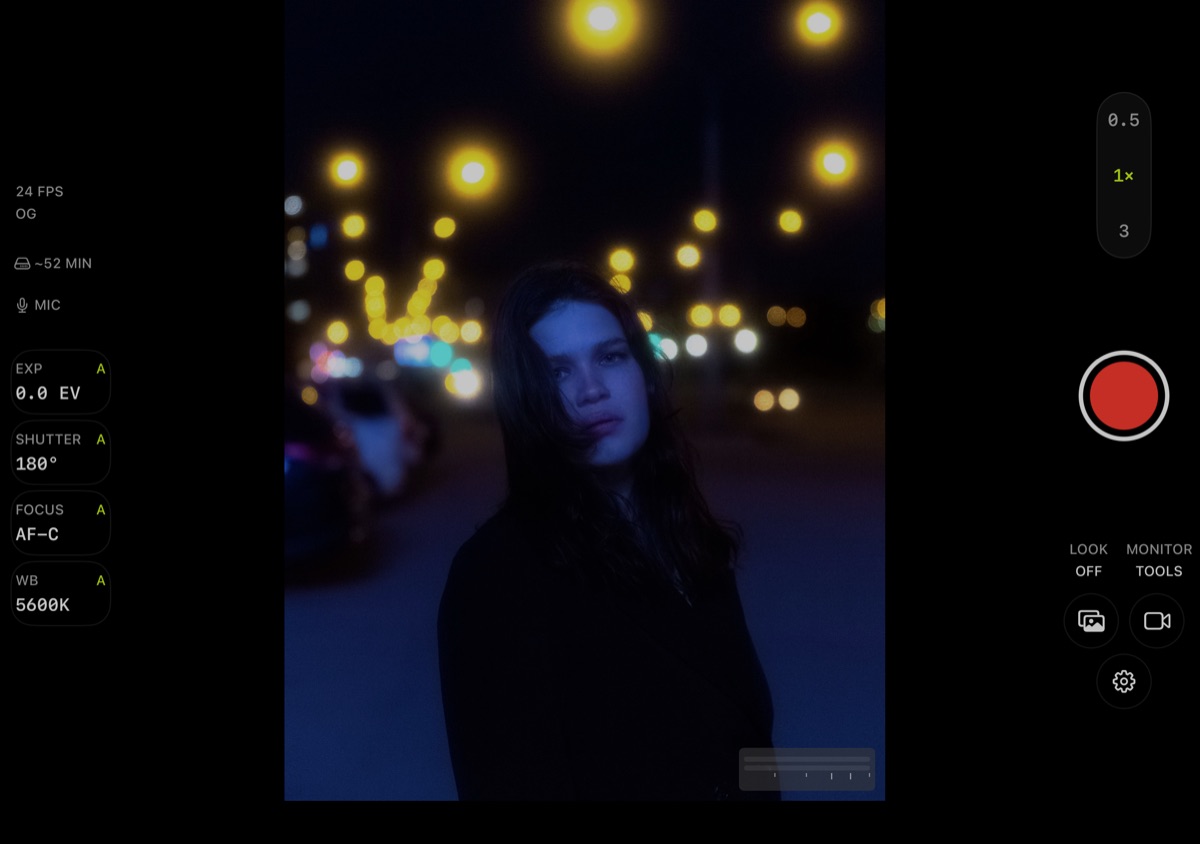
The open Duo is also the best place to check what you shot. In the library, a clip's detail screen and the grading editor both put the picture on the left and the tools on the right, so neither has to stack them.
Folding and turning the Duo mid-shoot
Fold or unfold the Duo and the camera screen rearranges itself in place for the display you are now using, with no restart. A clip's orientation is set when you press record, so the screen changing around it does not turn the recording.
Turn the open Duo and the controls turn with it, so they stay upright in your hands. While you record, the screen holds still, so the viewfinder does not rearrange itself mid-take.
Frequently asked questions
- Does the iPhone Duo shoot Apple Log?
- Not in Apple's Camera app. Apple's Duo tech specs list HEVC and H.264 as the video formats it records, with no Apple Log or ProRes. Log Cam records Apple Log and six other log profiles on the Duo because it applies the curves itself. 1
- Can I shoot log on the Duo's outer screen?
- Yes. Held upright, the outer display shows the exposure readouts in a band across the top and the picture at full width, with record and the lens buttons in the strip on the right, beside the Duo's clock and front camera.
- What frame rate should I use for log on iPhone Duo?
- Use 24 fps for a cinematic look and 30 fps for social video. Pair them with a shutter at double the frame rate: 1/48 at 24 fps, 1/60 at 30 fps. The app offers 23.976, 24, 25, 29.97 and 30.
- Can I change exposure while recording on the Duo?
- Yes. Turn on Focus & exposure while recording in Settings, and focus, ISO and shutter stay adjustable during a take.
- What does Log Cam cost?
- The app is free to download, everything works for 10 days with no credit card and no subscription, and then a one-time purchase keeps recording open.
Sources
- 1.Apple Support, “iPhone Duo - Tech Specs,” support.apple.com
- 2.Apple Support, “About Apple ProRes on iPhone,” support.apple.com
- 3.Apple Support, “About standard, log, and RAW video,” support.apple.com
Start filming with Log Cam
Shoot log video with manual controls, ProRes, HEVC and built-in monitoring tools.