How to Shoot Log on iPhone, Including an iPhone 12, 13 or 14
Here is how to shoot log on iPhone with Log Cam: RAW 4K Video Camera, including on an iPhone 12, 13 or 14. Choose a log curve, record a clip, then keep it in log for grading or preview it at normal contrast while you shoot.
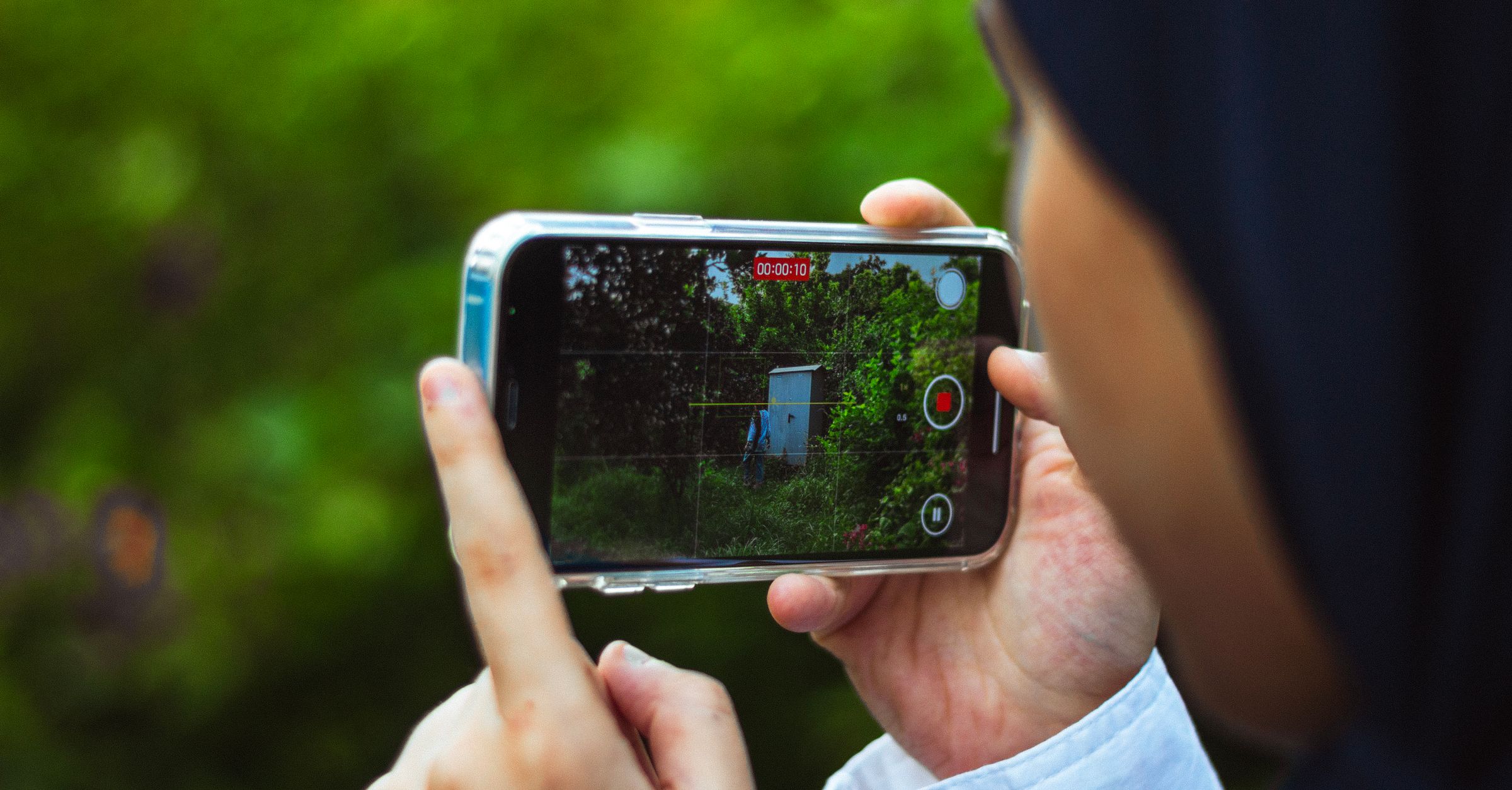
Can your iPhone record log?
If the app runs on your iPhone, it can record log, including on an iPhone 12, 13 or 14. In Final Cut Camera, log recording requires iPhone 15 Pro or later, while Apple also documents ProRes Log in the built-in Camera app on iPhone 16 Pro and iPhone 17 Pro models.1,2
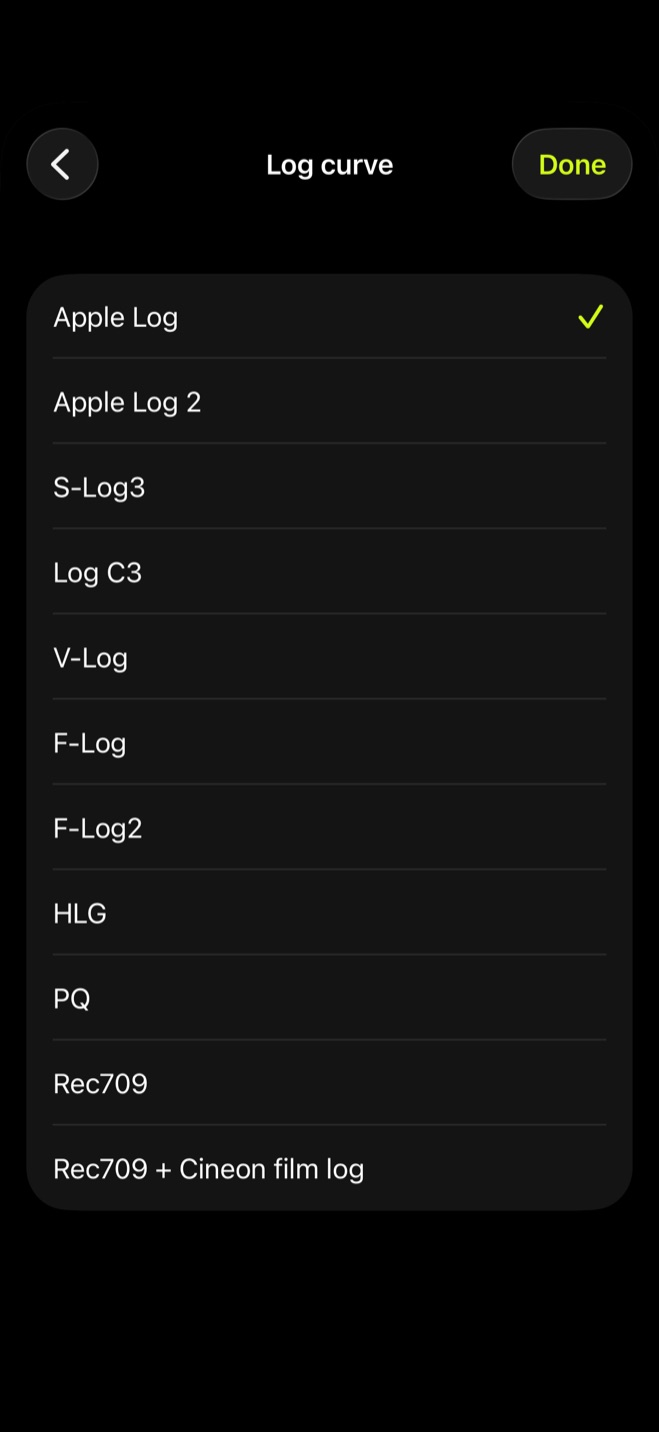
The app applies the log curve itself rather than depending on Apple Log from the phone. You can choose Apple Log, Apple Log 2, S-Log3, Log-C3, V-Log, F-Log or F-Log2.
Everything works for 10 days with no credit card and no subscription. After that, a one-time purchase permanently unlocks recording.
Record your first log clip
- 1.
Open Settings
In the Color group, choose Log curve.
- 2.
Pick a log curve
For a simple first clip, choose Apple Log. If the iPhone clip needs to fit a Sony, ARRI, Panasonic or Fujifilm workflow, choose the corresponding S-Log3, Log C3, V-Log, F-Log or F-Log2 curve. Apple Log 2 is also available, and a checkmark shows which curve is selected.
- 3.
Return to the camera
Turn LOOK on so the viewfinder shows the picture the app is recording. With no LUT loaded, that means you see the log picture.
- 4.
Start the take
Use the red record button at the bottom center. When the shot is complete, end the recording from the camera screen.
- 5.
Find the clip in Library
The finished clip lands in the app's own gallery. The same folder is available in the Files app, so the clip is easy to move into your editing workflow.
Why the picture looks flat while shooting
A log curve records picture values in a way that preserves more dynamic range than standard video, so the result looks flat and desaturated before grading. That washed-out appearance is expected.1
In the app, Std is the default viewfinder mode and shows the phone's normal picture. Look shows the picture the app is recording. With Look on, Rec.709 assist shows the log picture at normal contrast without changing the recording.
Keep the clip in log or finish the look while shooting
Once the shot looks right, decide whether you want a log clip to grade later or a look written into the recording. Load your own .cube LUT on the LUT page, then choose Monitoring only or Baked as Rec.709. Monitoring only applies the LUT to the viewfinder preview while the clip stays log. Baked as Rec.709 writes the look into the recording.
| LUT destination | What you see | What is recorded | After shooting |
|---|---|---|---|
| Monitoring only | The LUT appears in the viewfinder with Look on | The clip stays log | Grade the clip later in an editing app |
| Baked as Rec.709 | The LUT appears in the viewfinder with Look on | The look is written into the recording | The clip is recorded with the look already applied |
If you plan to grade after the shoot, use Monitoring only and keep the recording in log. If you want the look written into the file at capture, use Baked as Rec.709. The 10-day trial gives you time to record real clips on your own iPhone and try the workflow before you need the one-time purchase to continue recording.
Sources
- 1.Apple Support, “About standard, log, and RAW video - Final Cut Camera User Guide,” support.apple.com
- 2.Apple Support, “About Apple ProRes on iPhone,” support.apple.com