Filming app for iPhone: Log and RAW video with manual controls
A filming app for iPhone should give you log and RAW footage while making manual controls easy to reach. Log Cam: RAW 4K Video Camera keeps those controls visible on its camera screen.
Log and RAW video for grading
Log video uses a logarithmic curve to preserve more dynamic range, which gives you a flatter, less saturated picture that is meant to be color graded later. RAW video retains image information from the camera sensor, giving you more flexibility in post-production.1,2
Log Cam records log and RAW video on iPhone using the sensor's RAW data and its own log curves. It includes seven log profiles: Apple Log, Apple Log 2, S-Log3, Log C3, V-Log, F-Log, and F-Log2.
Each clip can be saved in 4K as ProRes 422 HQ, ProRes 422, ProRes 422 LT, or 10-bit HEVC 4:4:4 or 4:2:0. ProRes favors higher color fidelity and less compression, while HEVC is the smaller-file option.3
Set ISO, shutter, white balance, and focus
You can set ISO, shutter, white balance in Kelvin, and focus yourself, while autofocus and tap to focus are there when you want them.
What you can control
- ISO: set the exposure level for the scene.
- Shutter: control exposure and how motion is rendered.
- White balance: set the color balance in Kelvin so it stays consistent through the shot.
- Focus: choose where the picture is sharp, or use autofocus and tap to focus.
Focus, ISO, and shutter can also change while a take is recording. With Adjust while recording enabled, you can pull focus or respond to changing light without stopping the clip.
Manual controls on the camera screen
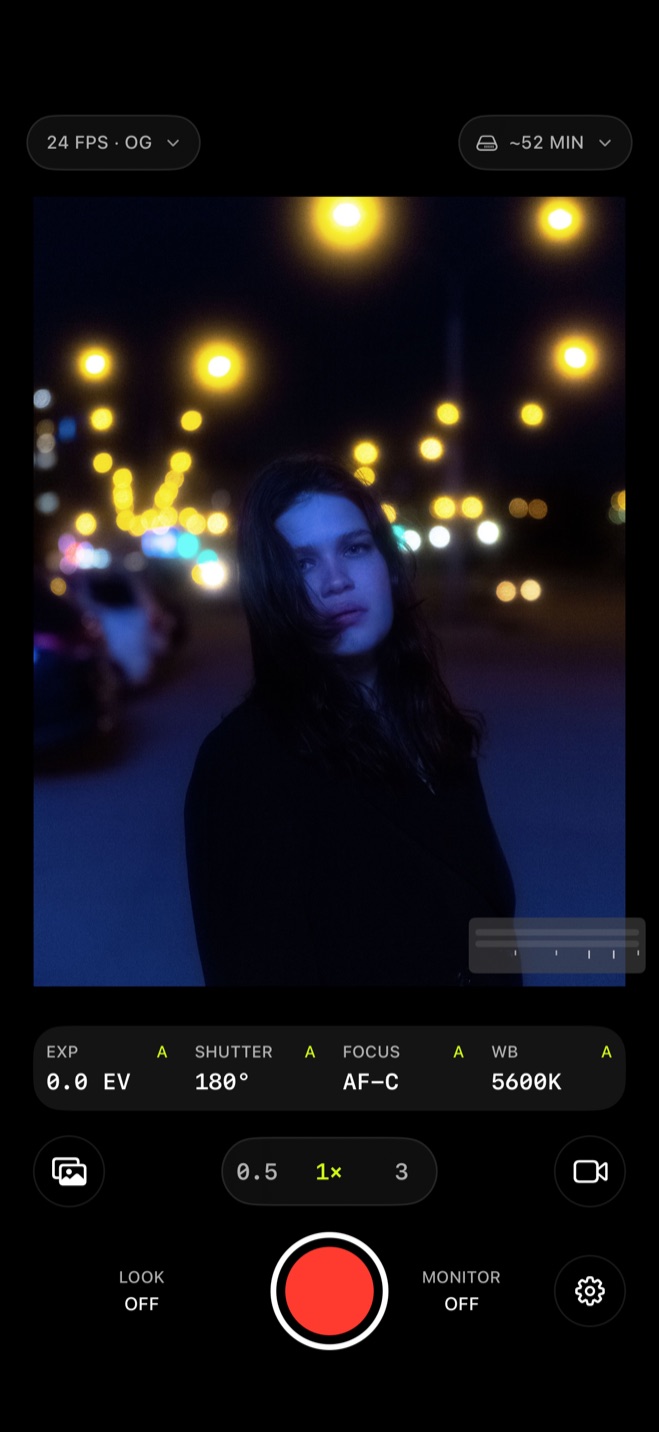
The main camera screen keeps the controls you use while filming in view. Along with the record button, you can see the EXP, SHUTTER, FOCUS, and WB readouts, pick between the available lenses, and check the current format readout.
Because the readouts and record button stay together on the main view, you can frame the shot, make an adjustment, and record without changing screens.
Once you stop recording, the clip is ready to import into your editing app.
Recording settings for your iPhone model
Log Cam adapts its recording options to each iPhone model and only offers settings the phone can record smoothly. On an older model that cannot record 30 fps smoothly, the app offers 25 fps instead.
The seven log profiles also work on earlier iPhones such as an iPhone 12, 13, or 14, including Apple Log. Apple's own Apple Log recording requires an iPhone 15 Pro or later, but Log Cam can record Apple Log on those earlier models too.2
The app requires iOS 17.6 or later.
Try the full app for 10 days
Log Cam is free to download, and everything works for 10 days with no credit card and no subscription. After the trial, one purchase unlocks recording.
The Library, playback, and every setting stay free either way, so you can use them before deciding whether you want to unlock recording after the trial.
Sources
- 1.Apple Support, “About standard, log, and RAW video,” support.apple.com
- 2.Apple Support, “Set the video format in Final Cut Camera,” support.apple.com
- 3.Apple Support, “Record ProRes video with your iPhone camera,” support.apple.com