What is the Log Cam app?
Log Cam: RAW 4K Video Camera is an iPhone camera app that records log video, with manual controls and a LUT preview while you shoot. It records 4K clips as ProRes or HEVC, with exposure tools, LUT preview, physical lens selection, external drive capture, and an in-app gallery. 1
Key takeaways
- Pick ProRes when your workflow emphasizes post-production, or use HEVC when that format better fits your storage and editing plan.
- Use monitoring when you want a graded view without changing the log clip, and bake only when you want permanent color.
- Enable Adjust while recording before a shot if you need to change focus, ISO, or shutter during capture.
- Pick the ultra-wide, wide, or telephoto physical lens that matches your framing before you record.
- Choose an external SSD or hard drive as the destination when you want clips to land on external storage during capture.
- Use the in-app gallery and Files access to review and manage finished clips outside the Photos library.
The app records log video in ProRes or HEVC
The app records 4K at 3840x2160, and its open gate mode records the full sensor frame. It offers five frame rates. The available rates are 23.976, 24, 25, 29.97, and 30 frames per second.1
| Category | Available choices | What the choice controls |
|---|---|---|
| Video codecs | ProRes 422 HQ, ProRes 422, ProRes 422 LT, 10-bit HEVC 4:4:4, HEVC 4:2:0 | The file format for each clip |
| Frame rates | 23.976, 24, 25, 29.97, 30 fps | The capture cadence for each clip |
ProRes fits workflows that put more emphasis on post-production. Apple documents multi-stream, real-time edit performance for ProRes in compatible editing apps.2
HEVC files are usually smaller, and the bitrate presets let you choose how much data each clip uses. Pick the codec that fits your storage plan and editing app.
The word RAW in the product name describes the capture path. The saved file is ProRes or HEVC. The app reads Bayer sensor data and debayers it on the GPU.
It then applies its log curve and writes ProRes or HEVC. Photo mode can write a .dng negative and a .heic picture when available.
Its log profiles come from the app itself
The app includes seven log profiles: Apple Log, Apple Log 2, S-Log3, Log-C3, V-Log, F-Log, and F-Log2.1
The app computes these log curves in its own GPU pipeline. It does not depend on Apple's built-in Log path for that step.
The app requires iOS 17.6 or later. ProRes still has separate hardware requirements, so the log-profile mechanism does not define ProRes availability.1
A log picture often needs a display transform before it looks normal to your eye. The app offers Rec.709 assist without a LUT.
LUT preview can stay on screen or enter the clip
Use a LUT in the app
- 1.
Install a LUT
Add the LUT you want to use. The mode picker appears after the app has an installed LUT.
- 2.
Choose monitoring
Monitoring changes the screen while the clip stays in the selected log profile. Use this path when you plan to grade later.
- 3.
Choose baking
Baking writes the LUT into the clip itself. Use this path when you want the chosen color fixed into the file.
Exposure and focus controls
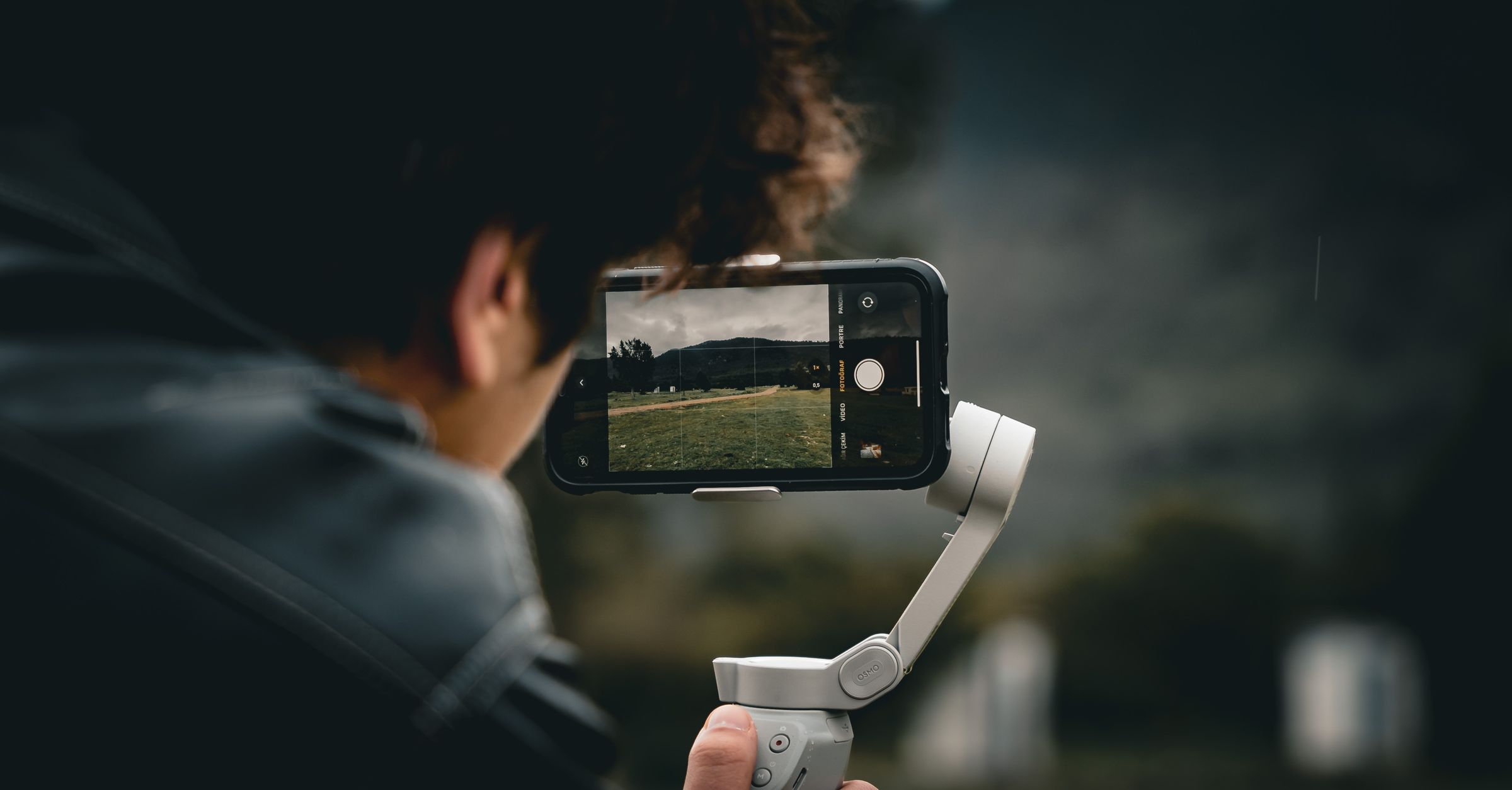
The app includes false color, zebras, and a histogram for exposure checks. These tools sit beside manual ISO, shutter, and white balance controls.
Autofocus and tap to focus are also available. Manual focus gives you direct control when autofocus is not the right choice.
Focus, ISO, and shutter can change during a shot when you enable Adjust while recording. It is off by default.
White balance does not change during a shot. For composition, you pick a physical lens: ultra-wide, wide, or telephoto.
The app also includes anamorphic desqueeze and open gate.
Record directly to an external SSD
You can pick an external SSD or hard drive connected directly to the phone as the destination. Each clip then lands on that drive.
No computer is needed. You can also export clips to the Files app after capture.
Audio inputs and gyro data
For sound, the app records with the iPhone's built-in microphones or a Bluetooth, wired or USB microphone you connect.
The app also writes gyro data alongside the video for Gyroflow stabilization in post.
Review clips in the app gallery
After you stop a shot, the finished clip appears in the app's own gallery. Clips recorded to the iPhone live in Documents/Clips, which Files can also access.
The app does not write clips or photographs to the Photos library. The gallery gives you one place to review captured material before editing.
Photo mode availability depends on what the active camera and lens report for that session. Clips and photographs can share the same gallery.
Who is this app for?
A beginner can pair one log profile with Rec.709 assist, autofocus, and the exposure tools.
A professional can add manual exposure, custom LUTs, ProRes choices, external drive capture, and gyro data.
Frequently asked questions
Sources
- 1.Mehmet Ali Kisacik, “Log Cam: RAW 4K Video Camera,” apps.apple.com
- 2.Apple Support, “About Apple ProRes on iPhone,” support.apple.com