iPhone filming app for manual focus, exposure and log video
Log Cam: RAW 4K Video Camera is an iPhone filming app that makes its log footage from the sensor's RAW data for every frame, so there is more to work with when you color it. You set exposure, focus and white balance in Kelvin, and you can change focus, ISO and shutter during a take.
Log and RAW video recording
Apple's camera builds Apple Log from a picture the iPhone has already processed, and it needs an iPhone 15 Pro or later. Log Cam goes back to the sensor's 14-bit RAW Bayer data for every frame, does the demosaicing, noise reduction and log curve in the app, then saves the clip as ProRes or HEVC. Since the curve is the app's own, all seven profiles work on whatever iPhone runs Log Cam, including an iPhone 12, 13 or 14.
Log video uses a logarithmic curve to preserve more dynamic range than standard video, so the picture looks flatter and less saturated before color grading. That extra highlight and shadow detail gives you more room to shape the color later.1
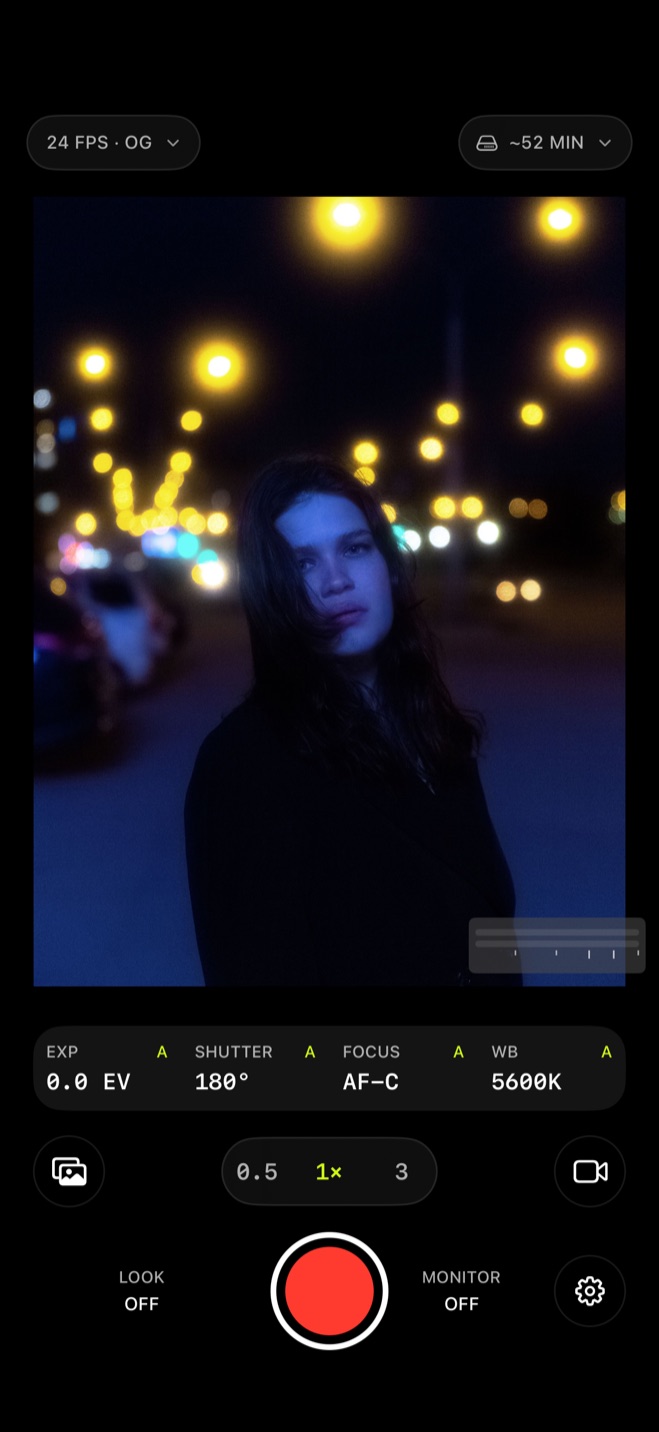
Before recording, the camera screen keeps `LOOK` and `MONITOR` available while you frame the shot, so you can check the picture you are working with before you press record.
Set exposure, white balance and focus
Manual ISO and shutter let you set exposure for the scene, while white balance in Kelvin keeps the color balance consistent. For focus, you can use autofocus or tap the part of the frame you want the camera to focus on.
The camera screen keeps `EXP`, `SHUTTER`, `FOCUS` and `WB` readouts visible while you compose the shot. The `0.5`, `1×` and `3` lens row lets you pick the physical camera that gives you the framing you want.
Adjust focus and exposure during the take
Turn on `Adjust while recording` in Settings and focus, ISO and shutter can still be changed after recording starts. You can pull focus as a subject moves or ride exposure when the light changes without ending the take.
Review the take in the gallery
After you stop recording, the clip is saved in the app's Library, its in-app gallery. Play it back there to check the captured focus, exposure and color before deciding whether to record another take.
Sources
- 1.Apple Support, “About standard, log, and RAW video,” support.apple.com