Manual camera app for iPhone: ISO, shutter, white balance and focus set by hand
Log Cam is a manual camera app for iPhone that takes RAW photos and log video. You pick the ISO, the shutter and the white balance in Kelvin, and focus goes where you tap, so the exposure is the one you chose and not the phone's guess. The video starts from the sensor's RAW data rather than a picture the iPhone has already processed, which leaves more room when you color the footage, and every setting the app offers is one your iPhone can record.
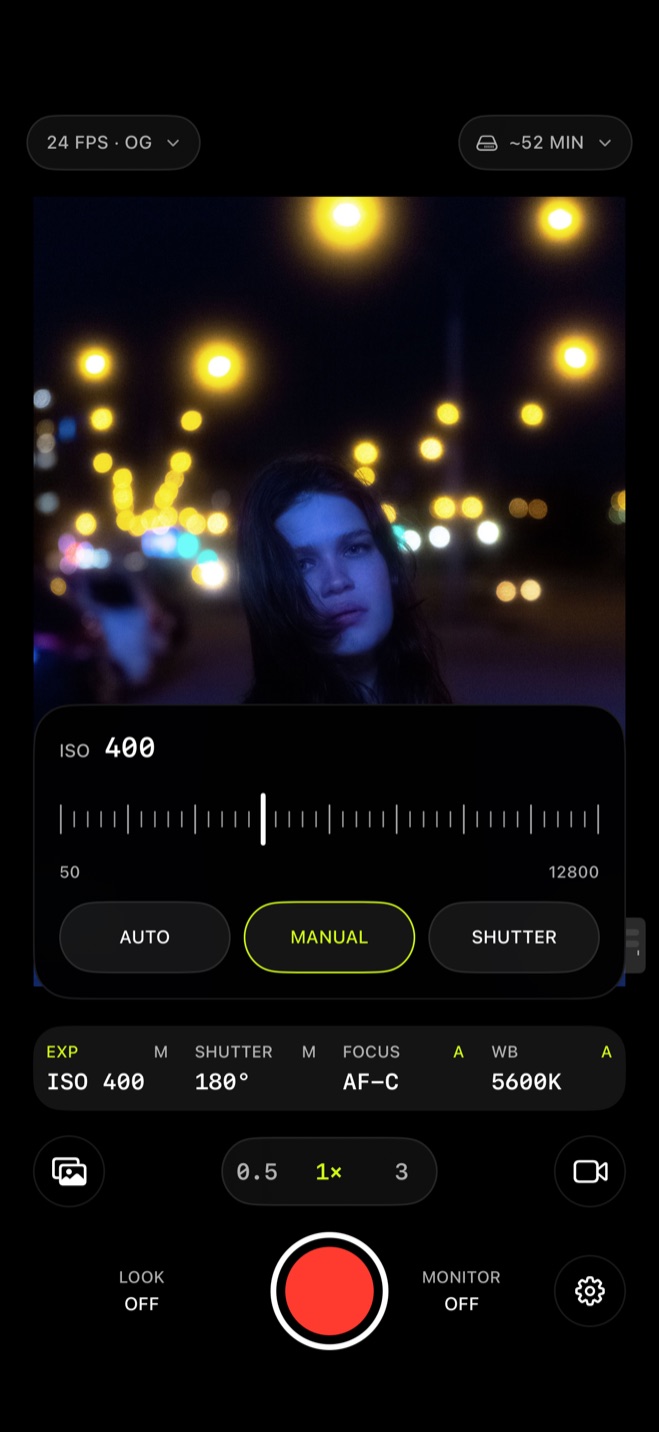
What ISO, shutter, white balance and focus do to the shot
The phone's automatic exposure reads the scene, picks a brightness for you and keeps revising it as the light or the framing changes. Set by hand, a control stays where you put it: a locked ISO holds the exposure steady through a recording, and a fixed shutter keeps motion looking the same from the first frame to the last.1
The four controls, one at a time
- ISO sets how sensitive the camera is to light. The lowest ISO that gives a bright enough picture keeps noise down, and a higher value brightens a dark scene.
- Shutter controls motion blur in the shot. At 24 fps, a shutter of 1/48 of a second gives natural motion blur.
- White balance in Kelvin sets what counts as white for the scene and holds it there, so skin stays the same color as the camera moves between a window and a lamp.
- Focus holds on the point you tap. Leave it alone and autofocus takes over.1
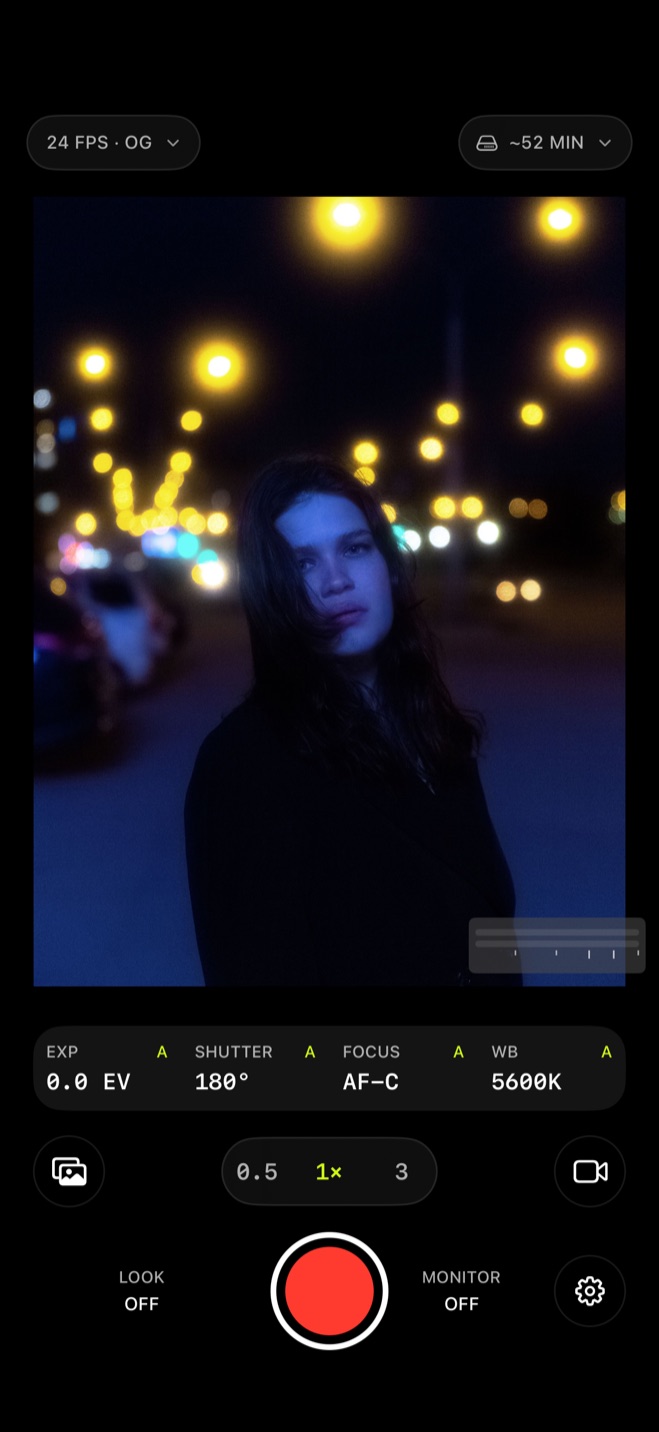
The manual controls and focus page covers each control in more depth.
How do you know the exposure is right?
Log Cam shows a histogram, zebras and false color, so you judge exposure from those tools rather than from how bright the screen looks. They matter most with log video, where the screen alone is a poor judge of exposure. In the MONITOR menu, the histogram is under SCOPE, and zebras and false color are under EXPOSURE ASSIST.
The histogram graphs how many pixels fall at each brightness level. Zebras draw diagonal stripes over any part of the frame that is overexposed, and the Zebras (IRE) threshold in Settings sets where they start. False color replaces each brightness level with a color, like a heat map, and those colors show which parts of the frame are too bright or too dark.2
If you think in shutter angles, as cinematographers do, turn on Shutter angle readout in Settings and the shutter shows as an angle instead of a fraction of a second. False color vs zebras vs histogram explains which exposure tool to check first.
With Adjust while recording turned on, focus, ISO and shutter can change during the take. You can pull focus as someone walks toward the camera, or bring ISO up as a scene moves from sun into shade.
Does it take RAW photos, or only video?
It takes both. Photo mode takes a full-resolution RAW photograph, and one press writes two files: a .dng negative that keeps the sensor data for editing, and a .heic picture you can use as it is.
Photos use the same manual settings. They save next to your clips in Library, the app's own gallery. If an external SSD or other drive is connected as the recording destination, the photos save there instead. Set LUT destination to Baked as Rec.709, and the still comes off the phone already graded, the same as a clip.
The RAW photo mode page covers the photo side, and the log profiles and codecs page covers the video side.
Free for 10 days, then a one-time purchase
Log Cam is free to download, and everything works for 10 days with no credit card and no subscription. After that, a one-time purchase unlocks recording. The gallery, playback and every setting stay free whether you buy or not.
Ten days is enough for a few real shoots with manual exposure and a look at the .dng files in your editing app before you buy.
Sources
- 1.Apple Support, “Adjust exposure and white balance in Final Cut Camera,” support.apple.com
- 2.Apple Support, “Use video scopes and overlays in Final Cut Camera,” support.apple.com