Videography app for iPhone with manual controls, scopes and log video
Log Cam: RAW 4K Video Camera is a videography app for iPhone with manual camera controls. You set shutter, ISO, white balance and focus yourself, and you read exposure on a histogram, zebras and false color. The app builds the log picture itself from the sensor's RAW data for every frame, which leaves more to work with in the grade, and saves each clip as ProRes or HEVC. It records at 24 and 23.976 fps.
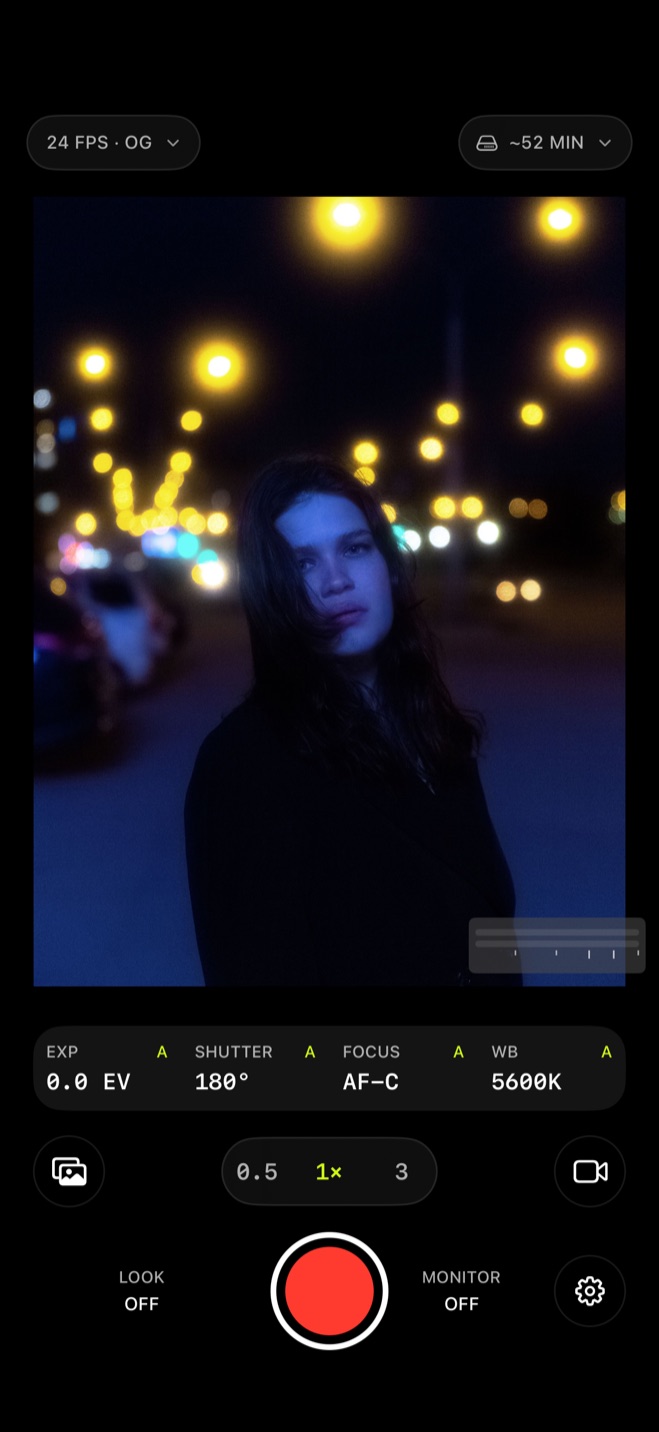
Setting shutter, ISO, white balance and focus by hand
Auto exposure drifts: brightness jumps when someone walks through the frame, and color shifts when a cloud crosses the sun. A videographer stops that by setting the camera by hand, and Log Cam gives you the same controls on an iPhone. ISO, shutter and white balance are yours to set, and once set they hold for the whole shot.
ISO sets how sensitive the sensor is to light. Keep it as low as the scene allows and the picture stays clean; raise it when you need to see into the dark. The shutter sets how motion looks, from a smooth blur to a crisp picture, and the classic pairing is a shutter of 1/48 of a second at 24 fps.1
White balance is set in Kelvin, the way it is on a cinema camera. Tungsten is around 3200K and daylight around 5600K, and locking that value keeps the color the same from one clip to the next instead of shifting as the camera guesses.
Autofocus finds the focus for you, or you tap the part of the frame that should be sharp and the focus lands there and holds. When a shot calls for it, focus, ISO and shutter can also change while the clip records, so you can pull focus to a subject walking toward you or ride the exposure as they step from shade into sun. The camera screen shows the EXP, SHUTTER, FOCUS and WB readouts together, so you check all four before you roll. The manual controls and focus page goes through each one.
The frame rate sits on the same screen. Tap the format readout, which shows the current rate, and the FRAME RATE row offers 23.976, 24, 25, 29.97 and 30 fps. Pick 24 for the film look, or 23.976 when the project is NTSC and the editor expects that exact rate.
Reading exposure on log footage
Log video is recorded flat and desaturated on purpose: the curve keeps more of the highlights and shadows for the grade. That makes a screen alone a poor judge of exposure. A flat picture hides how close the highlights are to clipping, and a phone screen in sunlight hides more.2
Three ways to read exposure
- Histogram. A graph of how many pixels sit at each brightness level, from black on the left to white on the right. A pile against the right edge means clipped highlights; a pile against the left means crushed shadows. Turn it on under SCOPE.
- Zebras. Diagonal stripes over any part of the picture brighter than the threshold you set, in IRE, under Zebras (IRE) in Settings. They warn before a sky or a face goes to pure white.
- False color. The whole picture repainted by brightness, like a heat map, so you see at once which parts are too bright and which are too dark. Pick FALSE COLOR under EXPOSURE ASSIST.3
If you think in shutter angle rather than shutter speed, turn on Shutter angle readout in Settings and the SHUTTER readout shows degrees, 180 at 24 fps in place of 1/48.1
Log curves, RAW video and ProRes or HEVC
A standard recording leaves the camera with its color and contrast already settled, much as a JPEG does for a photo. Log keeps the highlights and shadows that picture would throw away, so the grade has room to work. Apple's own Apple Log starts from a picture the iPhone has already processed. Log Cam starts earlier, from the sensor's 14-bit RAW Bayer data for every frame, and does the demosaicing, noise reduction and log curve itself before saving the clip in 4K as ProRes or 10-bit HEVC. ProRes is the choice when the editing app and the storage can take it; HEVC keeps the files smaller.2
Each camera maker has its own curve. Log Cam offers seven, under Log curve in Settings.
The seven log profiles
- Apple Log and Apple Log 2, Apple's own curves. Pick Apple Log for a first clip.
- S-Log3, the curve Sony cameras use.
- Log-C3, the curve ARRI cameras use.
- V-Log, the curve Panasonic cameras use.
- F-Log and F-Log2, the curves Fujifilm cameras use.
Pick one of the camera curves when the iPhone clip has to sit beside clips from that camera. A Sony shooter picks S-Log3 so both clips start on the same curve. The log profiles and codecs page lists every format, and how to shoot log on iPhone walks through a first clip.
Shooting log on an iPhone 12, 13 or 14
Because Log Cam makes the log curve itself, all seven profiles, Apple Log included, work on any iPhone that runs the app, including an iPhone 12, 13 or 14, or a standard iPhone 15 or 16. Apple's own camera needs an iPhone 15 Pro or later to record Apple Log.4
Log Cam works out the best your iPhone can do across lens, crop, frame rate and codec, and offers only what that phone can record. An older model that cannot hold 30 fps gets 25 fps.
Free for 10 days, then one purchase
Log Cam is free to download, and for 10 days everything in it works: every manual control, every exposure tool, all seven log profiles, ProRes and HEVC recording. There is no credit card to enter and no subscription. After the 10 days, a one-time purchase unlocks recording, and the gallery, playback and every setting stay free either way.
Set a scene by hand, check it on the histogram and false color, record the same shot in Apple Log and in S-Log3, and take both into your editing app to grade.
Sources
- 1.Apple Support, “Adjust exposure and white balance in Final Cut Camera,” support.apple.com
- 2.Apple Support, “About standard, log, and RAW video in Final Cut Camera,” support.apple.com
- 3.Apple Support, “Use video scopes and overlays in Final Cut Camera,” support.apple.com
- 4.Apple Support, “Set the video format in Final Cut Camera,” support.apple.com